You’re on an important video call when the person on the other end says, “You’re cutting out again and you are choppy” You glance at your speed test and proudly reply, “That’s weird — I have 1.2 Gigabit download!”
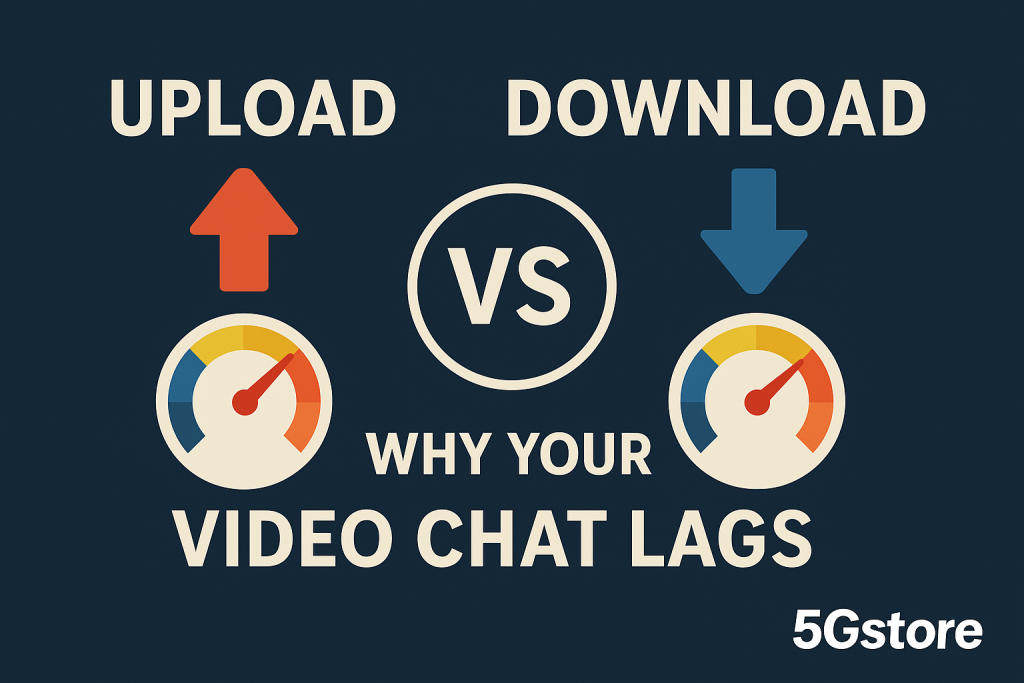
Here’s the catch: your download speed isn’t the problem. The issue lies in your upload speed — and it’s often the silent culprit behind choppy video, frozen faces, and delayed audio during video chats.
Download vs. Upload: What’s the Difference on Gigabit?
Most internet connections (especially cable and 5G home plans) are asymmetric — meaning the download speed is much higher than the upload speed.
- Download speed is how fast you receive data — like streaming a movie or loading a webpage.
- Upload speed is how fast you send data — like sharing your camera and microphone feed in a video chat, sending files, or backing up to the cloud.
When you’re on Zoom, Teams, or FaceTime, your device continuously uploads video and audio to everyone else in the meeting. If your upload connection is weak, your video will freeze, your voice will stutter, and you might drop out entirely — even if your download speed is blazing fast.
How Much Upload Speed Do You Actually Need?
For a typical HD video call:
- 1:1 video chat: 2–3 Mbps upload minimum
- Group call (3–5 people): 3–5 Mbps upload
- Large meetings or HD+ video: 6–10 Mbps upload
But real-world performance depends on more than just raw bandwidth. Factors like congestion, latency, jitter, and packet loss can all degrade video quality — especially on shared connections where multiple users are streaming, gaming, or uploading simultaneously.
Why It Happens More Than You Think
If you’re using a shared home or office connection, your upload bandwidth is divided among every active device.
Examples:
- Someone’s backing up photos to iCloud or Google Drive.
- Security cameras are streaming 24/7.
- Cloud backups or updates are running in the background.
All of these activities compete for upload capacity — leaving little for your video chat.
The Real Fix: Dedicated or Bonded Connectivity
If you rely on video conferencing for work or customer meetings, it’s worth investing in a more reliable setup.
✅ Option 1: A Dedicated Connection Just for You
Use a separate internet connection (or 5G router) solely for your video calls. That way, no one else’s traffic can interrupt your upload stream.
At 5Gstore, we carry a range of 4G/5G routers that can act as a dedicated connection — even in homes or offices where the main ISP is overloaded.
✅ Option 2: A Bonded Connection
Bonding combines multiple internet connections — cable, cellular, fiber, or even Starlink — into one powerful, unified link. If one path lags or drops packets, the bonded router automatically reroutes data through the other links.
This technology, found in Peplink SpeedFusion routers, provides smoother video calls, uninterrupted uploads, and near-zero downtime — ideal for remote workers, live streamers, and businesses that can’t afford disruptions.
How to Test Your Upload Speed
Head to speedtest.net or use the speed test built into your router or device. Focus on the upload result — not the download.
If your upload speed is below 3–5 Mbps, or if it fluctuates wildly during the test, that’s your smoking gun.
Bottom Line
If you hear, “You’re cutting out,” during a video call, your massive 1.2-gig download isn’t helping. The issue is your upload — the part of your connection that sends you to the world.
To fix it:
- Test your upload speed.
- Stop sharing bandwidth with other devices — or use a separate 4G/5G connection.
- For best results, upgrade to a bonded router solution so your video never drops again.
At 5Gstore.com, we specialize in reliable connectivity solutions — from dedicated cellular routers to enterprise-grade bonding systems. Whether you’re a remote worker, a business owner, or a tech-savvy home user, we’ll help you keep your video calls crystal clear.