Table of Contents
One of the most common questions we get at 5Gstore is simple: “Will a cellular router work at my location?” It sounds like a straightforward question, but the answer depends on a surprising number of variables: which carrier you are on, how far you are from the nearest tower, what frequency bands are being used, whether terrain or buildings are blocking the signal path, and more.
For years, the best advice we could give was to check a carrier’s coverage map, cross your fingers, and order a router. Coverage maps are notoriously optimistic, and what looks like solid 5G coverage on paper can turn out to be marginal LTE in practice.
That changes today. We are proud to announce the launch of Tower Finder, a free iOS app from 5Gstore that puts real cell tower data directly in your hands, so you can make smarter decisions about cellular connectivity before you spend a dollar on hardware.
What Is Tower Finder?
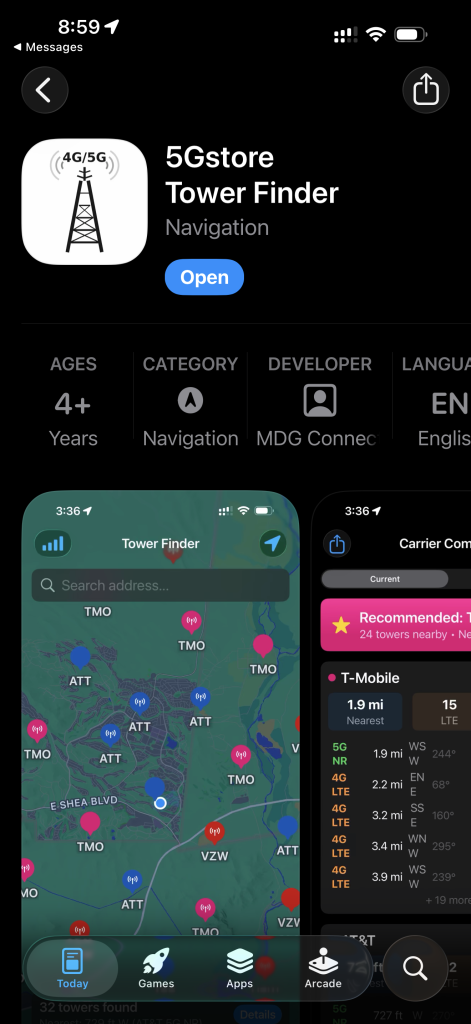
Tower Finder is a free iOS application that displays nearby cellular towers on an interactive map, along with detailed information about each tower, the carriers it supports, the technology it broadcasts (4G LTE, 5G Sub-6, 5G mmWave), and signal characteristics. It is designed for anyone evaluating cellular internet service, troubleshooting an existing connection, or trying to determine the optimal placement for a cellular router or antenna.
The app is completely free. There are no subscriptions, no in-app purchases, and no premium tiers. Every feature is available to every user at no cost.
Most importantly: Tower Finder collects no personal information whatsoever. Your location data stays on your device. We do not track you, store your search history, sell your data, or share anything with third parties. The app requests your location only to center the map and calculate distances to nearby towers. That data never leaves your phone.
Why Cell Tower Data Matters
Before diving into the features, it helps to understand why knowing where towers are located makes such a meaningful difference in real-world cellular performance.
Distance and Line of Sight
Every foot of distance between your device and a cell tower costs you signal strength. In open terrain, a cellular router might maintain an excellent connection from several miles away. But in a dense suburban neighborhood or behind a ridge line, even a tower that appears close on a map might deliver a frustratingly weak signal.
Tower Finder shows you the actual compass bearing and straight-line distance to each tower so you can think critically about what is between you and the signal source.
Frequency Bands and Their Trade-offs
Not all 5G is created equal. Low-band 5G (below 1 GHz, such as T-Mobile’s n71 or AT&T’s n14) travels enormous distances and penetrates buildings well, but delivers speeds that are only modestly faster than LTE. Mid-band 5G (2.5 to 6 GHz, such as T-Mobile’s n41 or AT&T’s n77) is the current sweet spot, offering excellent capacity and speeds in the hundreds of megabits per second at reasonable distances. High-band mmWave 5G (above 24 GHz) delivers multi-gigabit potential but has a range measured in city blocks and is stopped cold by walls, trees, and rain.
Tower Finder displays the band and technology information for each tower so you can understand not just whether you have 5G coverage, but what kind of 5G you can realistically expect.
Multi-Carrier Comparison
A tower site often hosts equipment from multiple carriers on the same physical structure. Being able to see which carriers serve a given location, and how their tower infrastructure compares, is invaluable when choosing a data plan to pair with a cellular router.
Feature Deep Dive
Interactive Tower Map
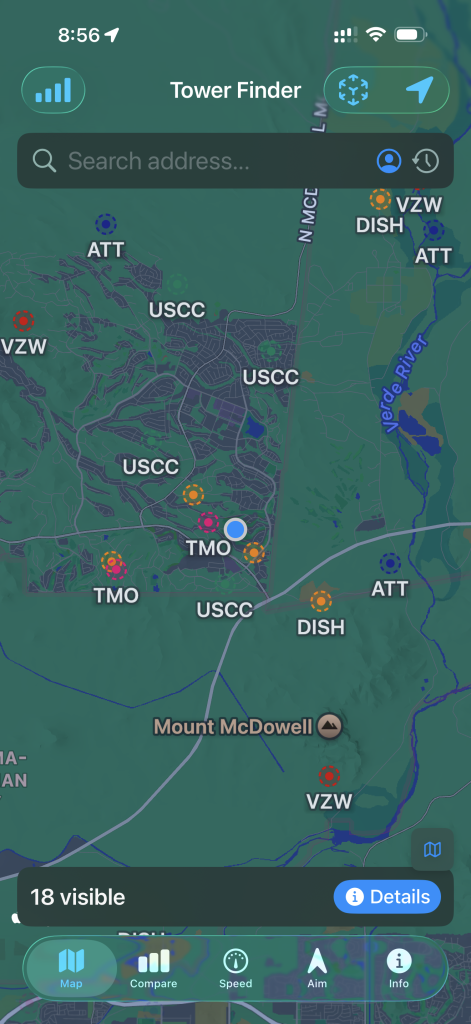
The heart of Tower Finder is a responsive, zoomable map centered on your current location. Each nearby cell tower is represented by a color-coded marker indicating the primary carrier associated with that site. Tap any marker to see a detailed information panel for that tower.
The map loads tower data dynamically as you pan and zoom, so you can explore coverage not just at your current location but at any address you are considering. Planning a move? Scoping out a vacation cabin for remote work? Just navigate the map to that location and see the tower landscape before you arrive.
Tower Detail View
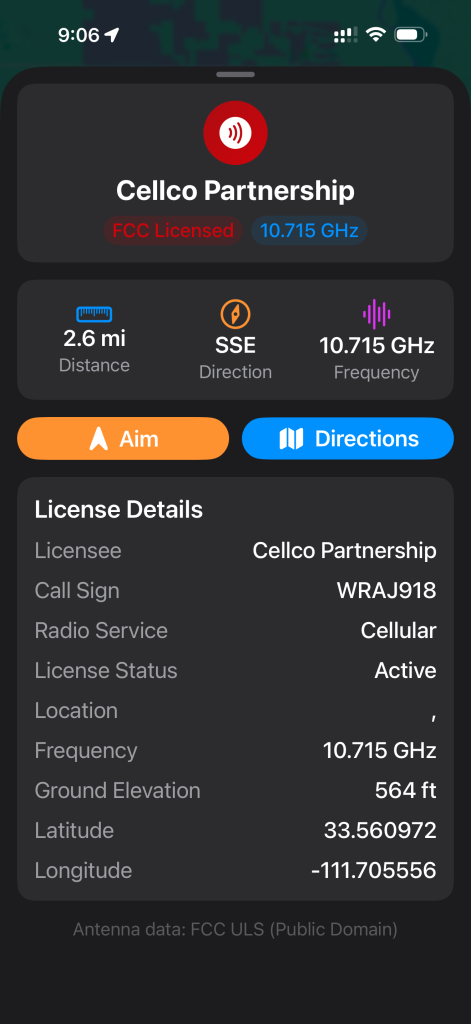
Tapping a tower opens a detailed information sheet that includes:
Carrier and operator information. Who owns and operates the tower, which is not always the same as who leases capacity on it.
Technology and generation. Whether the tower is broadcasting 4G LTE, LTE Advanced, 5G Sub-6, 5G mmWave, or a combination. Many modern towers are dual-stack, supporting both LTE and 5G simultaneously.
Frequency bands. The specific radio frequency bands in use at that tower. This is critical information for router selection, since a cellular router must support the bands your nearest tower is broadcasting to achieve optimal speeds. A router that lacks band support for n41, for example, will fall back to a slower alternative even if the tower right down the road is blasting mid-band 5G.
Tower coordinates and elevation. Useful for antenna aiming and understanding topographic relationships.
Distance and bearing from your location. Displayed in both miles and kilometers, with a compass bearing so you know exactly which direction to aim an external antenna.
Signal Strength Indicator
For towers detected by your iPhone’s own cellular radio, Tower Finder can display real-time signal strength alongside the map data. This bridges the gap between “a tower exists nearby” and “my device is actually connecting to it with good signal.” Seeing a tower on the map is useful. Knowing your signal strength to that specific tower is actionable.
Carrier Filter
When you are in an area with dense infrastructure, the map can fill up quickly with tower markers from every carrier in the region. The carrier filter lets you focus the display on just the carriers you care about. Shopping between AT&T, T-Mobile, and Verizon? Toggle each one on and off to compare their tower density and proximity side by side.
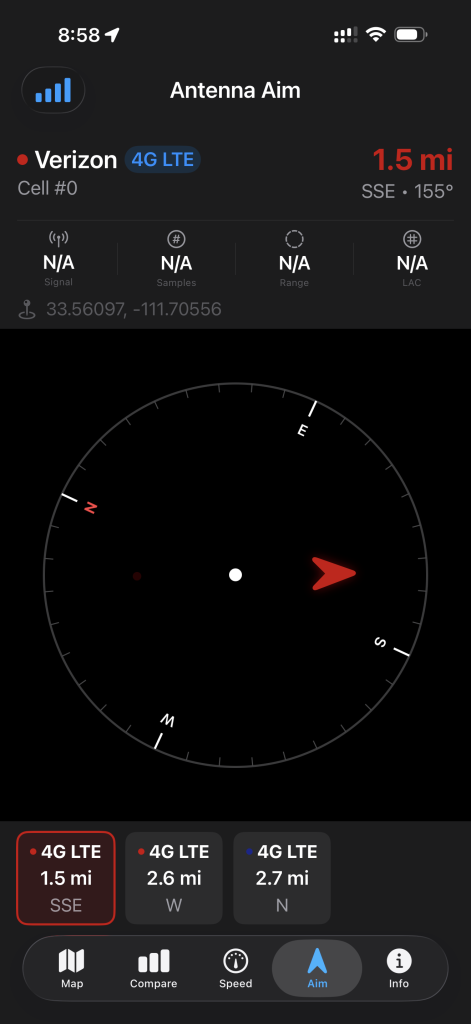
Antenna Aiming Mode
One of the most practical features for cellular router users is the antenna aiming mode. External directional antennas, like the wide-band MIMO panels we carry at 5Gstore, work best when pointed accurately at the serving tower. Even a few degrees of misalignment can cost you several dB of signal, which translates directly to slower speeds and higher latency.
Antenna aiming mode uses your iPhone’s compass and gyroscope to help you physically orient toward your target tower. Point your phone at the tower marker, align the on-screen indicator, and mark that bearing to guide your antenna installation.
Address Search
You do not have to be physically present at a location to research it. The address search function lets you enter any address and instantly see the tower landscape for that location. This is invaluable for pre-installation planning, evaluating a property for remote work suitability, or helping a customer or family member troubleshoot their connectivity before you drive out to help. Enter your customer’s address and then goto the Compare step and email a PDF to your customer. There is always a “Rep Mode” to block out competition and even brand the PDF with your name and email.
How Tower Finder Helps You Choose the Right Equipment
Tower Finder is not just an informational curiosity. It is a practical pre-purchase tool that can save you from buying hardware that does not match your coverage reality.
Here is a common scenario: a customer orders a 5G router because their carrier’s map shows 5G coverage at their address. The router arrives, they set it up, and the speeds are disappointing. After some investigation, they discover the nearest 5G tower is broadcasting on a band their router does not support, so the device falls back to LTE. The right router, with the right band support, would have delivered much better performance.
With Tower Finder, you can identify the specific bands your nearest tower is broadcasting before you place an order. Our team at 5Gstore can then match you to a router whose band support aligns with your actual coverage. This is exactly the kind of consultative guidance we have always tried to provide, and Tower Finder puts the raw data in your hands to make those conversations more precise.
Privacy, By Design
We want to be direct about this because it matters: Tower Finder does not collect, transmit, or store any information about you or your usage.
The app uses your device’s GPS to center the map and calculate distances. That location data is used locally, on your device, and goes nowhere else. We do not have a server logging your location history. We do not know what addresses you have searched. We do not have analytics tracking how you use the app. There is no account creation, no sign-in, and no profile.
This is a deliberate design choice. Tower data is publicly available information, and a tool for reading it should not require you to hand over your personal data to use it. We think that is the right approach, and we are happy to stake our reputation on it.
Who Is Tower Finder For?
Cellular router customers evaluating coverage before purchasing or configuring a router for home, RV, or business use.
IT professionals and network engineers doing site surveys for cellular failover or primary WAN deployments.
RV travelers and van lifers who need to quickly assess coverage at a new campsite or boondocking location.
Remote workers evaluating a home, cabin, or co-working location for reliable cellular broadband.
Cellular network enthusiasts who want to understand the infrastructure that powers their connectivity.
Anyone who has ever wondered why their signal is weak in a specific spot and what might be causing it.
Download Tower Finder Today
Tower Finder is available now on the Apple App Store for iPhone and iPad. It is free, and it always will be. No in-app purchases, no subscription, no data collection.

Download it, walk around your property, and see your cell tower landscape with new eyes. If you have questions about what you find, or need help choosing a router that matches your coverage, our team at 5Gstore is here to help.
5Gstore Take
Tower Finder came out of a simple frustration: too many customers were buying equipment based on carrier coverage maps that did not tell the whole story. We wanted to give you the same kind of tower data that network engineers use, packaged in a way that anyone can use on their phone. It is free because the information should be accessible, and it collects no data because your location is your business. If you are serious about cellular connectivity and want to make smarter decisions about hardware and carriers, Tower Finder is the first tool you should reach for. Questions about what you find? Reach out to our team at 5Gstore.com and we will help you make sense of it.
Frequently Asked Questions
Is Tower Finder really free?
Yes, completely free. No in-app purchases, no subscription tier, no hidden costs. Every feature in the app is available to every user at no cost.
Does Tower Finder collect my location data?
No. Your location is used only on your device to center the map and calculate distances to nearby towers. That information is never transmitted to 5Gstore or any third party. We collect no personal data whatsoever.
Is Tower Finder available on Android?
Tower Finder is currently available for iOS on iPhone and iPad. We are evaluating Android development for a future release
Can Tower Finder tell me my actual internet speed?
Tower Finder focuses on tower location, band, and signal data rather than speed testing. For speed testing, we recommend running a test through your carrier’s app or a third-party speed test service alongside Tower Finder’s signal data.
How accurate is the tower data?
Tower data is sourced from publicly maintained infrastructure databases and is generally accurate for major carriers. Rural areas or very recently deployed towers may not be immediately reflected. Always use Tower Finder data alongside other signals like live RSRP readings from your device.
I found a tower nearby but my signal is still weak. Why?
Distance is only one factor. Terrain, buildings, foliage, and the specific frequency band a tower is broadcasting on all affect real-world signal. A tower on the other side of a hill may be effectively much farther away than its straight-line distance suggests. Tower Finder’s bearing and distance data, combined with knowledge of your local geography, can help you understand signal obstructions.
Does Tower Finder work in other countries?
Currently, US Only
Looking for the right cellular router to pair with what you discovered in Tower Finder? Browse our full selection of 4G LTE and 5G routers at 5Gstore.com, or contact our team for a personalized recommendation based on your tower data.